3D blockouts for concept art

Block out the scene. Paint over the shot.

Build a rough 3D scene in your browser and place cameras. Every camera’s view arrives as a layer in your drawing app and updates while you move things around.

For Photoshop, Krita, GIMP and Photopea

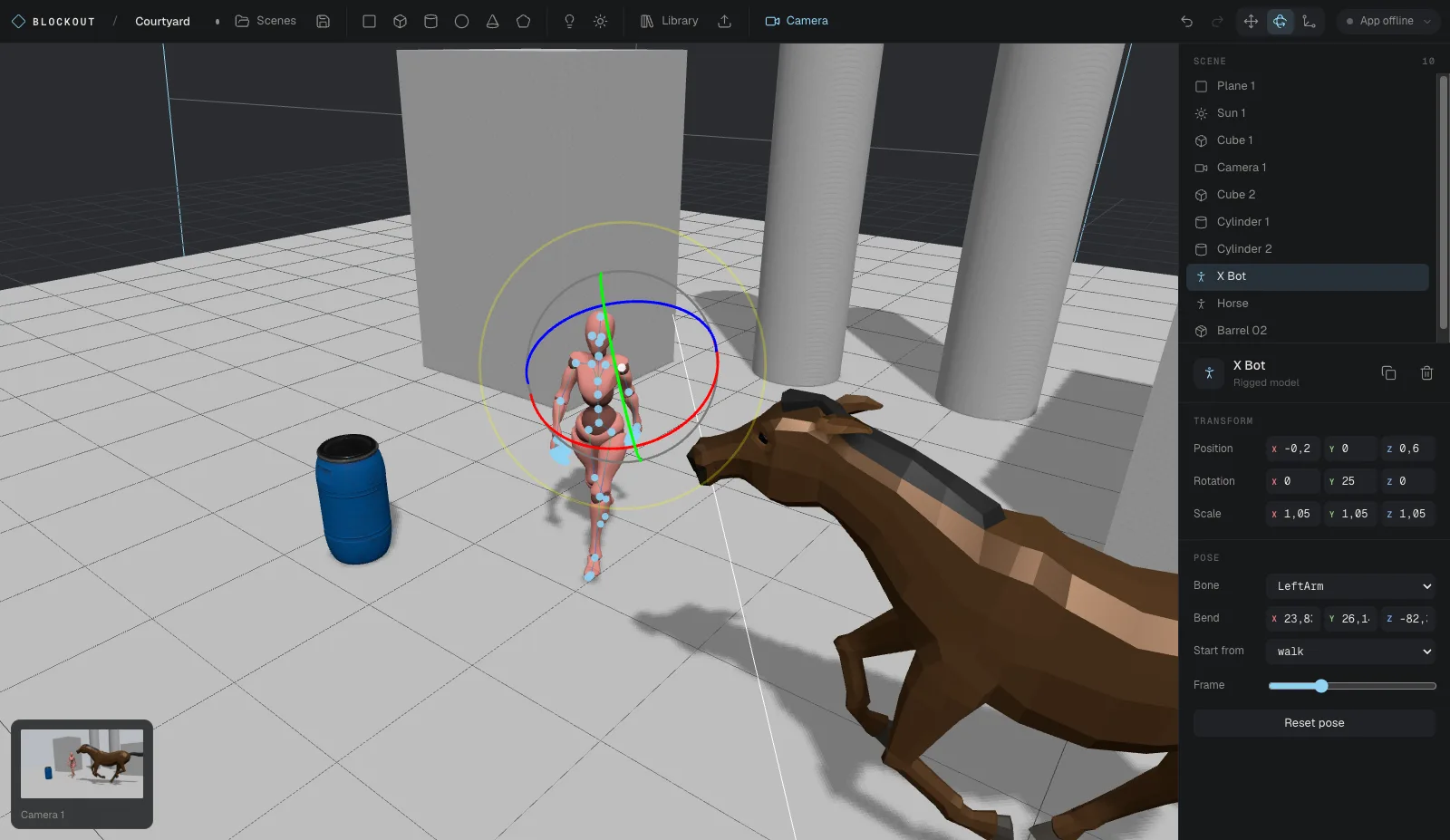
The Blockout editor: a ground plane with a posed human figure, a horse and props, a camera frustum, and the camera strip along the bottom.
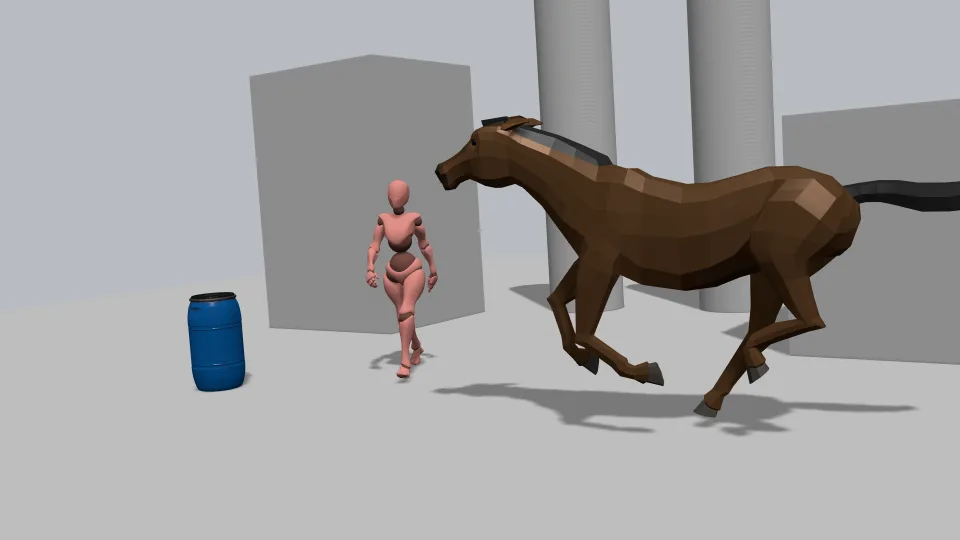
The view from Camera 1, a clean grey render ready to paint over.
Camera 1 · 1920×1080→ layer
How it works

From install to painting in four steps.

01

Install the plugin

Download it for your drawing app below. It adds a Blockout panel.

02

Sign in from the panel

Click Sign in with browser. The panel shows a short code.

03

The editor opens

Create an account or sign in, check the code, and click Link.

04

Block out and paint

Add shapes and cameras. Their views show up in the panel, one click from a layer.

The editor

Everything a blockout needs, nothing it doesn’t.

Shapes in seconds

Planes, cubes, cylinders, spheres, cones and custom extruded outlines. Move, rotate and scale with W, E and R.

Posable characters

Rigged humans and animals are built in. Click a joint to bend it, or start from a frame of a walk, run or gallop.

Your own models

Drop in .glb, .fbx or .obj files, including Mixamo characters, or pick from 500+ free props.

Cameras that matter

Set any resolution, from 16:9 to an A4 page. A strip along the bottom shows exactly what each camera sends.

Live layers

Turn on Live and the camera layer refreshes in place. Your paint layers above it stay untouched.

Saved to your account

Scenes, poses and cameras are stored with your account, with full undo while you work.

Download

Get the plugin for your app.

Each plugin links to your Blockout account. Install it, open its panel, and click Sign in with browser.

Photoshop

2023 (24.0) or newer · .ccx
  1. Double-click the downloaded blockout-photoshop.ccx and confirm in Creative Cloud.
  2. Restart Photoshop and open Plugins › Blockout.
Nothing happened after double-clicking?

Install it from the Terminal (macOS):

"/Library/Application Support/Adobe/Adobe Desktop Common/RemoteComponents/UPI/UnifiedPluginInstallerAgent/UnifiedPluginInstallerAgent.app/Contents/MacOS/UnifiedPluginInstallerAgent" --install ~/Downloads/blockout-photoshop.ccx

On Windows, in Command Prompt:

"C:\Program Files\Common Files\Adobe\Adobe Desktop Common\RemoteComponents\UPI\UnifiedPluginInstallerAgent\UnifiedPluginInstallerAgent.exe" /install "%USERPROFILE%\Downloads\blockout-photoshop.ccx"
Download for Photoshop

Krita

5.x and 6.x · .zip
  1. In Krita, choose Tools › Scripts › Import Python Plugin from File… and pick the zip.
  2. Restart Krita, then tick Blockout in Settings › Configure Krita › Python Plugin Manager.
  3. Restart again and open Settings › Dockers › Blockout.
Download for Krita

GIMP

3.0 or newer · .zip
  1. Unzip into your GIMP plug-ins folder (see Edit › Preferences › Folders › Plug-ins).
  2. Restart GIMP.
  3. Open File › Create › Blockout Cameras…. A window with your views stays open beside the canvas.
Download for GIMP

Photopea

In the browser · plugin gallery
  1. On photopea.com, open Window › More › Plugins.
  2. Search for Blockout and click Install.
  3. Open Blockout from your installed plugins.
Coming to the Photopea gallery

Missing your app, or found a bug? Tell us in the forum.

Procreate, Clip Studio Paint and Adobe Fresco don’t allow plugins of this kind. In those apps, save a camera view from the editor and import it.

Start with a cube and a camera.